CPU vs GPU Bottleneck — How to Tell Them Apart
A CPU bottleneck ignores your settings; a GPU bottleneck responds to them. Full comparison, which is worse, and how each behaves by resolution.
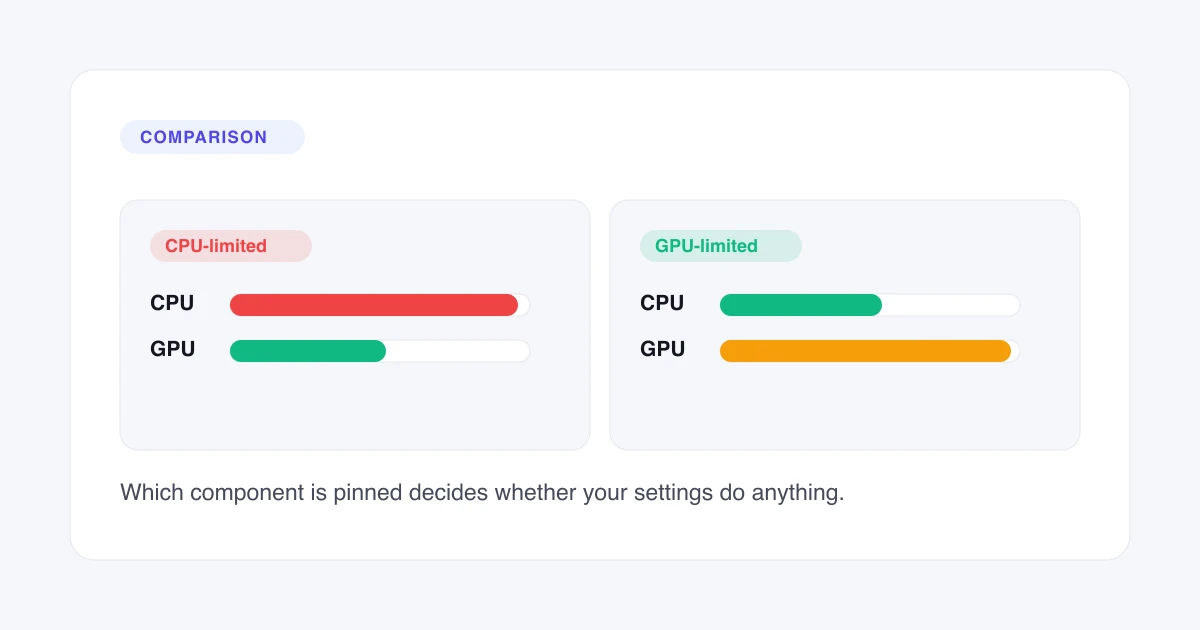
A CPU vs GPU bottleneck comes down to which component runs out of capacity first. A CPU bottleneck means the processor cannot prepare frames as fast as the graphics card can draw them, so the GPU waits. A GPU bottleneck means the reverse. Lowering graphics settings fixes one and does nothing for the other.
What Is a CPU Bottleneck?
A CPU bottleneck is the processor finishing frame preparation slower than the GPU can render. Every frame starts as CPU work: the CPU advances game logic, resolves physics, decides what is visible and submits draw calls describing the scene to the graphics driver. Only then can the GPU begin rendering.
A draw call is a single instruction from the CPU to the GPU to draw something. A frame in a busy scene needs thousands of them, and the CPU issues them one at a time. When that queue takes longer than the frame budget allows, the GPU finishes early and idles.
Single-thread performance decides most CPU limits, not core count. Game engines run a main thread that handles the simulation tick, and that thread cannot be split across cores. A CPU with many cores and modest per-core speed can therefore be slower in games than a CPU with fewer, faster cores.
Certain genres load the CPU far harder than others, and the pattern is consistent enough to predict. Simulation and strategy titles track large numbers of independent entities. Massively multiplayer games process server updates on a fixed tick. Competitive shooters at high refresh rates simply demand more frames per second, and every frame needs its own CPU preparation. All three costs land on the processor, and none of them shrink when you lower a graphics preset.
Background load counts as CPU load. Streaming software, a browser with many tabs open and voice chat all consume processor time that a game was relying on, which is why a machine that ran well last month can stutter today with no hardware change.
The signature of a CPU bottleneck is indifference. Lower the graphics settings and the frame rate barely moves, because the work you removed belonged to the GPU, which was already keeping up.
What Is a GPU Bottleneck?
A GPU bottleneck is the graphics card taking longer to render a frame than the CPU takes to prepare the next one. The CPU submits its draw calls, finishes early, and waits for the GPU to catch up. GPU utilisation sits at or near maximum while CPU utilisation keeps visible headroom.
Shading dominates that work. A shader is a small program the GPU runs per pixel or per vertex, and raising either the resolution or the graphics preset increases how many times it runs. More pixels means more shader invocations; a higher preset means more expensive ones.
A graphics card runs out in two distinct ways, and the two need different fixes. A compute limit means the GPU cannot shade fast enough, and it lowers the frame rate smoothly and predictably. A memory limit means the card has run out of video memory (VRAM) for the textures the scene needs, and it produces texture pop-in and frame-time spikes while the average frame rate still looks acceptable. Compute limits respond to a lower preset; memory limits respond to lower texture settings specifically.
Ray tracing shifts the balance sharply toward the GPU. Tracing rays and denoising the result is graphics work with almost no processor cost, so enabling it on a well-matched build usually converts a CPU-limited machine into a GPU-limited one.
The signature of a GPU bottleneck is responsiveness. Lower the resolution or drop a preset and the frame rate climbs roughly in proportion to the work removed. That responsiveness is the practical difference between the two limits, and it is why a GPU limit is the easier one to live with.
CPU vs GPU Bottleneck Compared
A CPU bottleneck and a GPU bottleneck differ on seven observable points, and none of them require monitoring software to notice.
The same pair of parts, two arrangements
- Lower the graphics settings
- Frame rate barely moves
- Raise the resolution
- Frame rate barely falls
- How it arrives
- Stutter before a lower average
The processor sets the pace
Illustration of the mechanism, not measured data.
| CPU bottleneck | GPU bottleneck | |
|---|---|---|
| Component pinned | CPU at maximum | GPU at maximum |
| What the other does | GPU waits with headroom | CPU waits with headroom |
| Lowering graphics settings | Frame rate barely moves | Frame rate climbs |
| Raising resolution | Frame rate barely falls | Frame rate falls in proportion |
| Typical genres | Simulation, strategy, MMO, competitive shooters | Ray-traced and open-world titles at high presets |
| How it feels | Stutter and uneven pacing | A uniformly lower frame rate |
| Preferred state | Avoid | Aim for |
How a CPU bottleneck and a GPU bottleneck differ across seven observable behaviours.
Two rows in that comparison do the diagnostic work on their own. A machine that responds to its own graphics settings gives you a dial to turn, and a machine that ignores them does not. The resolution row confirms the same finding from the opposite direction: raising resolution should cost you frames, and a frame rate that refuses to fall when you ask the GPU for four times the pixels was never waiting on the GPU.
The genre row is worth reading as a prediction rather than a rule. The same machine can be CPU-limited in a strategy title and GPU-limited in a ray-traced one within the same evening, which is why a single measurement describes a workload rather than a computer.
Which Is Worse — a CPU or GPU Bottleneck?
A CPU bottleneck is worse. The reason is control, not raw performance: a GPU-limited system responds to every setting you change, and a CPU-limited system largely does not.
That difference has a cost you can measure in decisions. If your GPU is the limit and you want more frames, you lower a preset, drop the resolution or enable upscaling, and the frame rate rises. If your CPU is the limit, none of those moves help, because they remove work from the component that was already finishing early. Your options narrow to reducing CPU load, accepting a lower refresh target, or buying a faster processor.
A CPU limit also feels worse than its average frame rate suggests. CPU work arrives unevenly across a frame sequence, so a CPU limit tends to appear as stutter rather than as a uniformly lower number. A GPU limit lowers the whole curve; a CPU limit adds spikes to it. Two machines reporting the same average frame rate can feel entirely different for that reason.
There is a second cost to a CPU limit, and it is financial. Replacing a graphics card is usually a single purchase. Replacing a processor often means a new motherboard and new memory alongside it, because socket and memory generations move together. A CPU limit therefore tends to be the more expensive one to remove, on top of being the harder one to work around.
The one case where a CPU limit is acceptable is a deliberate one: a competitive player at a high refresh rate on low settings has removed GPU work on purpose, and the CPU is supposed to be the constraint.
Can a GPU Bottleneck a CPU?
Yes, a GPU can bottleneck a CPU, and it is the normal state for a gaming PC rather than a fault. Most people asking this question already have the arrangement they want.
A GPU bottleneck means the graphics card is working at full capacity while the processor has spare headroom. The expensive component is the one working hardest, which is what you paid it to do. A build where the GPU never reaches maximum utilisation in games has usually spent too much on the processor.
The phrasing causes the confusion. “Bottleneck” reads as a defect, so a GPU bottleneck sounds like a problem with the graphics card. It describes a relationship, not a fault: one component reaches its ceiling first, and in a gaming build that component should be the GPU. What bottlenecking is on a PC covers the four beliefs about the term that are wrong.
The arrangement stops being desirable when the gap grows large. A modest processor paired with a flagship graphics card at 1080p can leave the GPU unable to reach its own ceiling, which is a CPU limit wearing a GPU-shaped label. The bottleneck calculator reports which component is named and by how much.
The reverse case is the one worth avoiding at purchase time. Pairing a flagship processor with a modest graphics card produces a large GPU bottleneck, and the money spent on processor headroom buys nothing in games because the CPU was never the constraint. Balance across the pair matters more than absolute performance on either side of it.
How Each One Responds to Resolution
Resolution moves the limit, because CPU work per frame stays roughly flat as resolution rises while GPU work per frame increases. The CPU issues the same draw calls for the same scene whether you render it at 1080p or 4K. The GPU shades four times as many pixels at 4K as at 1080p.
The same pair of parts therefore changes character across resolutions. A CPU and GPU that are CPU-limited at 1080p can be GPU-limited at 4K with no hardware change at all. Neither result is more correct than the other; they describe the same machine doing different work.
Upscaling reverses the effect. Rendering internally at a lower resolution and reconstructing the image cuts GPU work while leaving CPU work alone, which shifts a GPU-limited system back toward its CPU. A build that looks well matched at native 4K can become CPU-limited with upscaling enabled at the same output resolution.
Frame generation shifts it further still, because generated frames add little CPU work, so the frame rate you see can rise well past what the processor could prepare unaided. High refresh rates raise CPU load in the opposite direction: more frames per second means more frames to prepare, and the monitor bottleneck calculator covers what a panel can and cannot show.
How to Tell Which One You Have
Two settings changes identify your limiting component without installing anything: lower the resolution, then lower the graphics settings, and watch whether the frame rate moves. How to check for a bottleneck on your PC sets out both tests as steps, along with the utilisation patterns that confirm them.
For a figure rather than a pattern, the CPU bottleneck calculator and the GPU bottleneck calculator each name the specification that binds on their side, and the methodology sets out what those estimates can and cannot see. Where both components look healthy and the game still stutters, memory is the next place to look — the RAM bottleneck calculator names which of capacity, speed or channel configuration is binding.